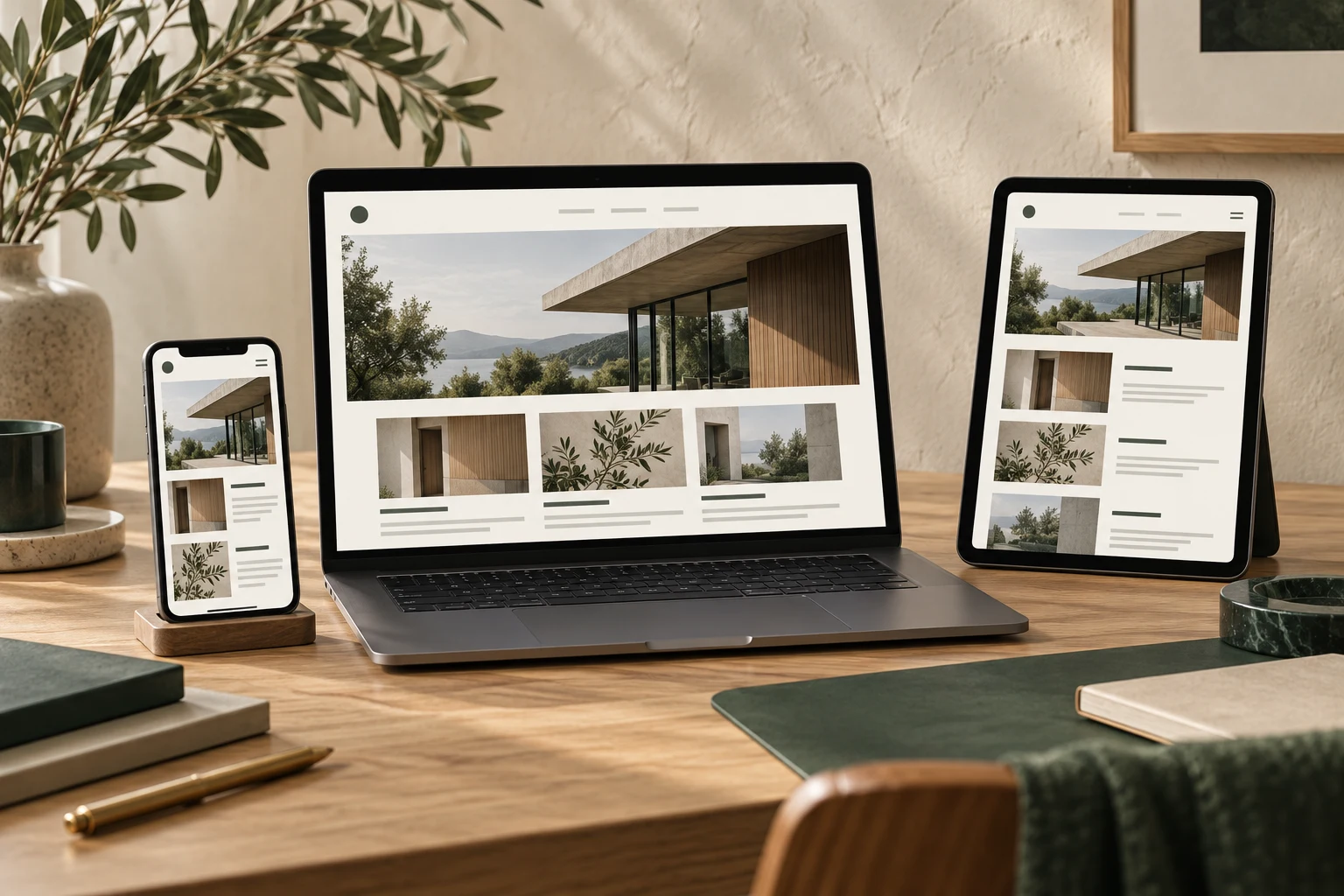



When replacing an old website with a new one, text content usually gets dedicated proofreading, but images are often treated as something to just "move over." Only after launch do problems surface: blurry product photos, missing case study images, banners cropped after a size change, and some images with unknown origins. Image asset issues won't prevent a website from loading, but they directly affect visitors' first impression of the company and create headaches for future maintenance.
Below, we categorize common image asset issues according to the actual sequence of a redesign. Each category includes actionable checks you can go through item by item for your own project.
1. Inventory Stage: No List of Old Site Images, Everything Relies on Memory Later
The most common mistake in a redesign is opening the old site's homepage and starting to screenshot or save images directly, rather than systematically inventorying images first. After an old site has been running for several years, images may be scattered across article content, product details, section headers, pop-ups, footers, and more. Manually browsing pages makes it easy to miss some.
A more reliable approach is to first create an image inventory. Suppose the old site has three main sections: products, cases, and news. You can organize by the following fields:
- Page URL or section where the image is located
- Position of the image on the page (header, inline content, thumbnail, etc.)
- Whether the original file is already available locally
- Whether this image is still needed on the new site
- Decision: keep, replace, delete, or pending confirmation

The inventory doesn't need to be complex—a simple spreadsheet is enough. The key is to turn "which images to migrate and which not to" into a checkable list, rather than making last-minute decisions before launch. The criteria can be simple: keep images still relevant to current business; mark discontinued product images, expired campaign graphics, and obviously outdated team photos as delete or replace.
2. File Naming: Chinese Names, Garbled Names, and "IMG_0231"
Old site images often have names like "WeChat Image_20230512.jpg," "Untitled-1.png," or a string of numbers. These files aren't a big problem during migration, but once moved to the new site, they become hard to manage: when a marketing colleague wants to find a specific product image, they have to open them one by one.
A redesign is a good time to rename images. We recommend using a lowercase English or pinyin format like "section-content-number," for example, product page images could be named product-a-01.jpg, and case images case-hangzhou-02.jpg. The naming rule doesn't need to be fancy—just understandable by a few team members and searchable by keywords.
Also avoid spaces, Chinese punctuation, and special characters in file names. These characters can become garbled when transferred between different systems and may display incorrectly after uploading to the backend. Once naming is standardized, replacing images and checking versions later becomes much easier.
3. Dimensions and Formats: New Site Layout Differs from Old
Old site images were cropped for the old template. After switching to a new layout, the same image may be stretched, cropped, or leave whitespace. Common symptoms: header images cut off on both sides, product images distorted in proportion, or on mobile only a small central portion of the image shows.
To handle this, first confirm the actual display dimensions and aspect ratio for each image position on the new site, then decide whether to reuse the old image directly or re-export. For example, if the new homepage header is a wide aspect ratio but the old header was nearly square, that image likely needs re-cropping or a new asset, not just forcing it in.
For formats, photos generally use JPG, while icons, logos, and images needing transparent backgrounds use PNG. During redesign, if you find many large files on the old site, you can compress them uniformly when re-exporting, but the compression level should be such that no obvious blur is visible to the naked eye. Don't compress product details into blurriness just to reduce file size.
4. Image Links: Old Image URLs Break After Domain Change
If the new site uses a new domain or directory structure, the access URLs for old site images will change. Already published articles, images referenced by external platforms, and image pages indexed by search engines may all become inaccessible. Users see blank boxes or broken images—a poor experience.

Before the redesign, you can export a list of main image URLs from the old site. After launch, open and check them one by one to confirm which images are still accessible and which have failed. For old images that still need to be kept, try to have the new site use similar paths or set up corresponding redirects. For images truly no longer used, at least ensure that pages referencing them have been updated accordingly.
Also check how images are referenced in article content. Some old articles directly paste image URLs; after switching sites, these URLs won't update automatically and need to be re-uploaded and replaced. This type of issue is easily missed when there are many articles, so it's best to check section by section rather than just the homepage.
5. Copyright and Source: Don't Directly Migrate Images with Unclear Origins
Images on an old site may come from various sources: provided by a design agency, taken by employees, downloaded from stock photo sites, or saved from other websites. If you move them as-is to the new site during a redesign, you're essentially continuing to keep images with unclear origins.
A more reliable approach is to add a "Source" column to your inventory list. Images confirmed as self-shot or with purchased licenses can be migrated normally. Images with unknown origins, obvious watermarks from other brands, or casually saved from the internet should be replaced. Especially for prominent positions like homepage headers and main product images, avoid using assets with unclear origins.
If the company doesn't have a dedicated image library, you can take the opportunity during redesign to organize an internal image folder, storing confirmed usable images together with notes on usage and source. This way, future redesigns or campaigns won't require searching everywhere for images again.
6. Backend Management: No One Manages Images After Upload
After the new site launches, image management methods also change. Some backends support a media library, while others require uploading by section. Common problems: the same logo uploaded a dozen times, image titles and alt text all default file names, and after a while no one can tell which version is the latest.
We recommend establishing a simple image management habit after launch: rename files according to naming rules before uploading; fill in meaningful image titles or alt text when uploading for easy retrieval by yourself and colleagues; regularly clean up unused images to prevent the media library from becoming cluttered. Alt text doesn't need to be long—just enough to explain what the image shows and where it's used.

If multiple team members are responsible for updates, it's best to agree on a storage rule, such as "product images in the product folder, campaign images archived by year." The simpler the rule, the easier it is to follow. Complex hierarchical directories often end up ignored.
Pre-Launch Image Checklist You Can Follow
When wrapping up the redesign, image-related checks can be done in one focused pass:
- Open the new site page by page and confirm there are no broken, blank, or failed placeholder images.
- Check that images on the homepage, section pages, product detail pages, and article content display completely and with proper proportions.
- Review on mobile, focusing on whether headers and product images have key parts cropped off.
- Confirm that old site image URLs still needed can be accessed normally.
- Verify image sources and replace any images with unclear origins.
- Confirm image naming and categorization in the backend media library so colleagues can find them directly later.
Most image asset issues aren't technical challenges—they arise because no one is specifically responsible during a redesign. Treat them as equally important migration objects as text content: list them in advance, set rules, and do a focused check before launch. This can save a lot of rework after going live.