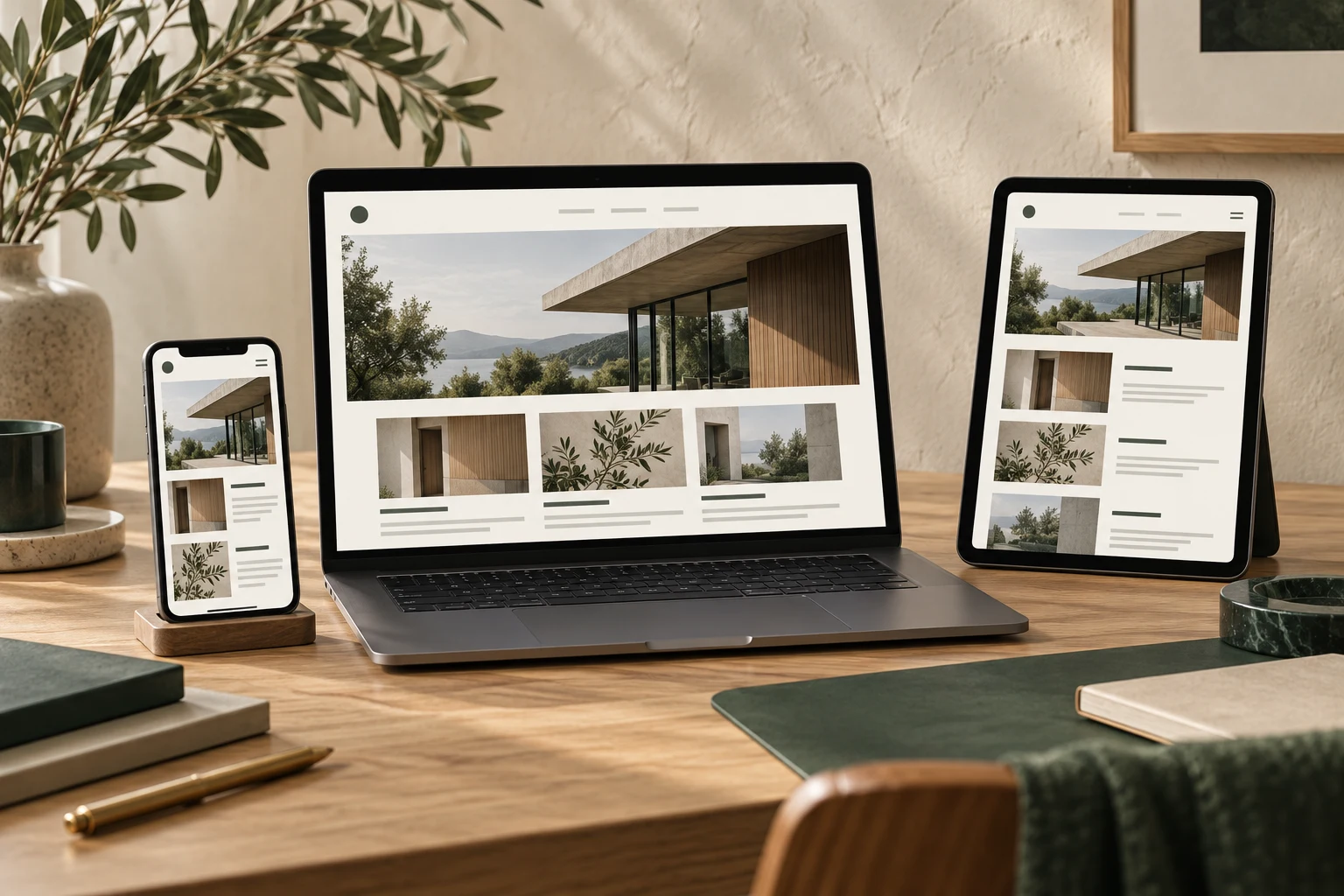



When building a corporate website, the most common responsive design issue is not whether the technology can be implemented, but whether the content arrangement has been thought through. Many pages look complete on desktop, but on mobile they turn into a long stack of modules, forcing visitors to scroll a long way to find contact information. To avoid this, you should first define breakpoints, then arrange module order, and finally review screen by screen on real devices.
Define breakpoints first, not the mobile version
A breakpoint is the screen width at which the page layout changes. A common approach for corporate websites is to set several main breakpoints based on three device types: mobile, tablet, and desktop, and then add one or two transition points based on actual content. More breakpoints are not necessarily better; each additional breakpoint increases the cost of maintenance and review.
When defining breakpoints, it is advisable to first look at traffic data: if the backend shows visitor device distribution, prioritize the browsing experience for the device type with the highest share; if no data is available yet, you can start with a mobile-first, desktop-second approach. Once breakpoints are set, write them into the design specification or development documentation to avoid different pages using different standards.
Arrange modules by content priority, not by desktop visual order
Desktop pages often use left-right columns or multiple columns side by side, while mobile can only become a vertical arrangement. At this point, the real decision is: which content block should appear first. A practical way to judge is to list the modules on the page and ask yourself: what would a visitor most want to see first when opening this page?
Take several common types of corporate website pages as examples:
- Homepage: a one-sentence brand or business description, core product or service entries, and contact or inquiry entries should be placed near the top; company introduction, news, etc. can come later.
- Product or service page: product name and key information, applicable scenarios or specifications, inquiry entry; detailed parameter tables can be placed later, and made expandable if necessary.
- Case study page: industry or type of the case, the problem the client faced, key points of the solution, then images and details.
- About Us page: company positioning, main business, team or qualification information, with contact information placed where it is easy to find.
These orders are not fixed templates, but the judging standard is consistent: the first screen on mobile should let visitors know what the page is about and what they can do next.
Handle images, tables, and long text—the content types prone to issues
Responsive page problems often concentrate in three types of content.
For images, the same image can display very differently on mobile and desktop. When planning, pay attention to whether key parts of the image will be cropped on narrow screens, especially banner images with text. If the image itself contains important text, it is recommended to convert the text into real text on the page rather than embedding it in the image.

For tables, wide tables are difficult to display fully on mobile. You can decide in advance: either let the table scroll horizontally, or split columns into stacked items. If the table has many columns, splitting into items is usually easier to read. This decision should be confirmed with development before the page goes live, not changed after launch.
For long text, desktop can fit many characters per line, while mobile has fewer characters per line, making paragraphs longer. When planning, control paragraph length, split large blocks of explanation into smaller paragraphs, and use subheadings when necessary to reduce reading pressure on mobile.
Arranging navigation and action entries on narrow screens
Horizontal desktop navigation is usually collapsed into a menu button on mobile. What to check here: after the menu expands, is the hierarchy clear, and can visitors find the target page without going back to the previous level? If the hierarchy is deep, consider reducing levels in the mobile menu and moving frequently used entries forward.
Action entries include inquiry buttons, phone numbers, form submissions, etc. These entries should remain clickable on mobile and not be blocked by other elements. Buttons should have enough click area to avoid accidental taps due to adjacent buttons being too close.
Review screen by screen on real devices before launch
After the page is completed, it is recommended to check in the following order:

- Open the page on mobile, tablet, and desktop respectively, scroll from top to bottom, and record what is displayed on each screen.
- Check whether the first screen explains the page topic and whether there are actionable entries.
- Check whether images have key information cropped and whether tables can be viewed properly.
- Check whether the navigation menu is complete after expansion and whether the column names match the page content.
- Check whether inquiry, phone, form, and other entries are usable on narrow screens.
- Record issues found by page, and after fixing, review again on the same devices.
If the website has multiple page templates, such as homepage, category page, and detail page, it is advisable to check at least one representative page for each template, rather than only checking the homepage.
Make responsive planning part of daily maintenance habits
Responsive pages are not fixed once launched. When updating content later, newly added images, tables, and text should also be checked against the above standards. A more convenient approach is to add a step in the content publishing process: before publishing, take a look at new modules at mobile width to confirm there is no overflow, blocking, or order confusion. This can prevent most problems before publishing and reduce later rework.