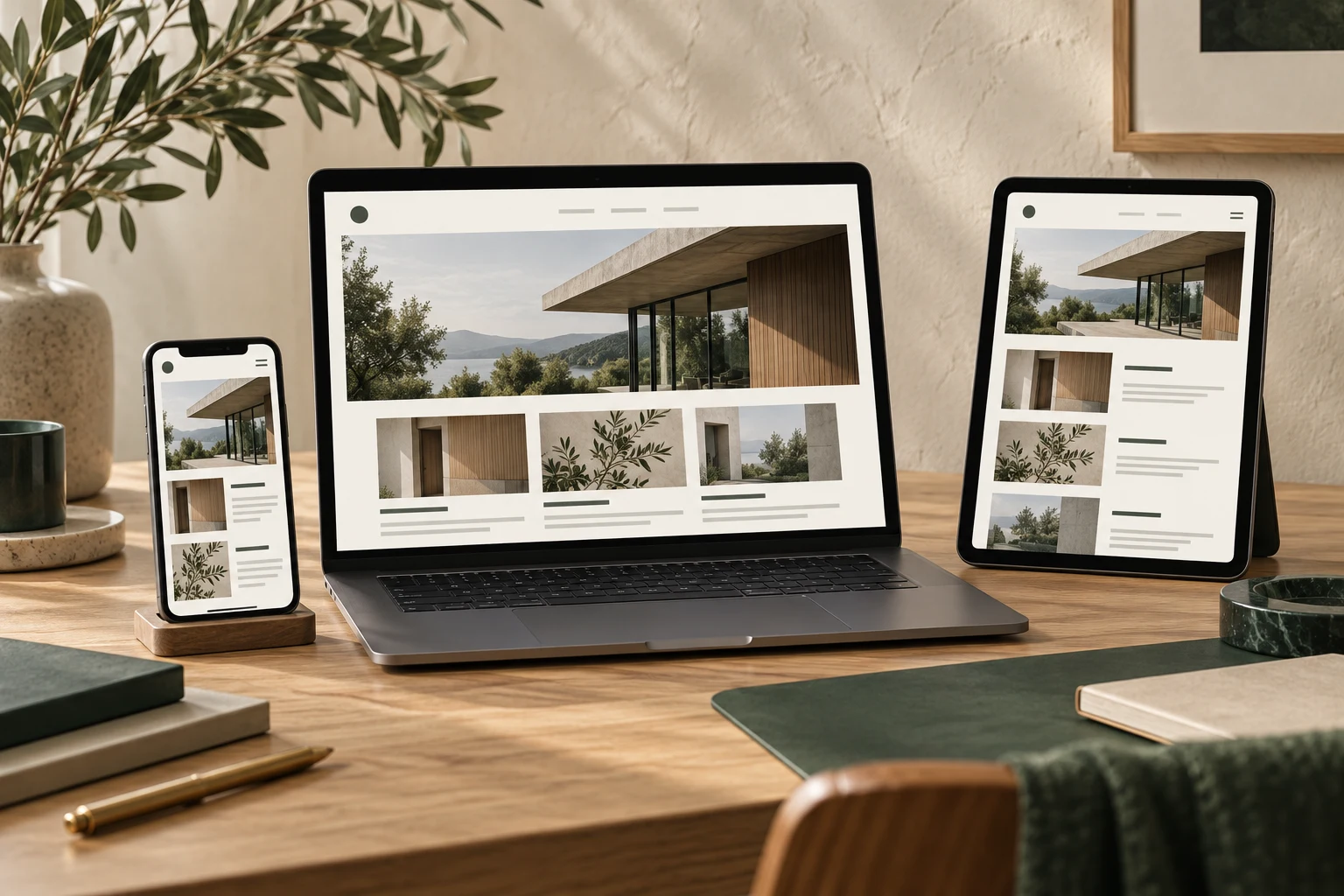


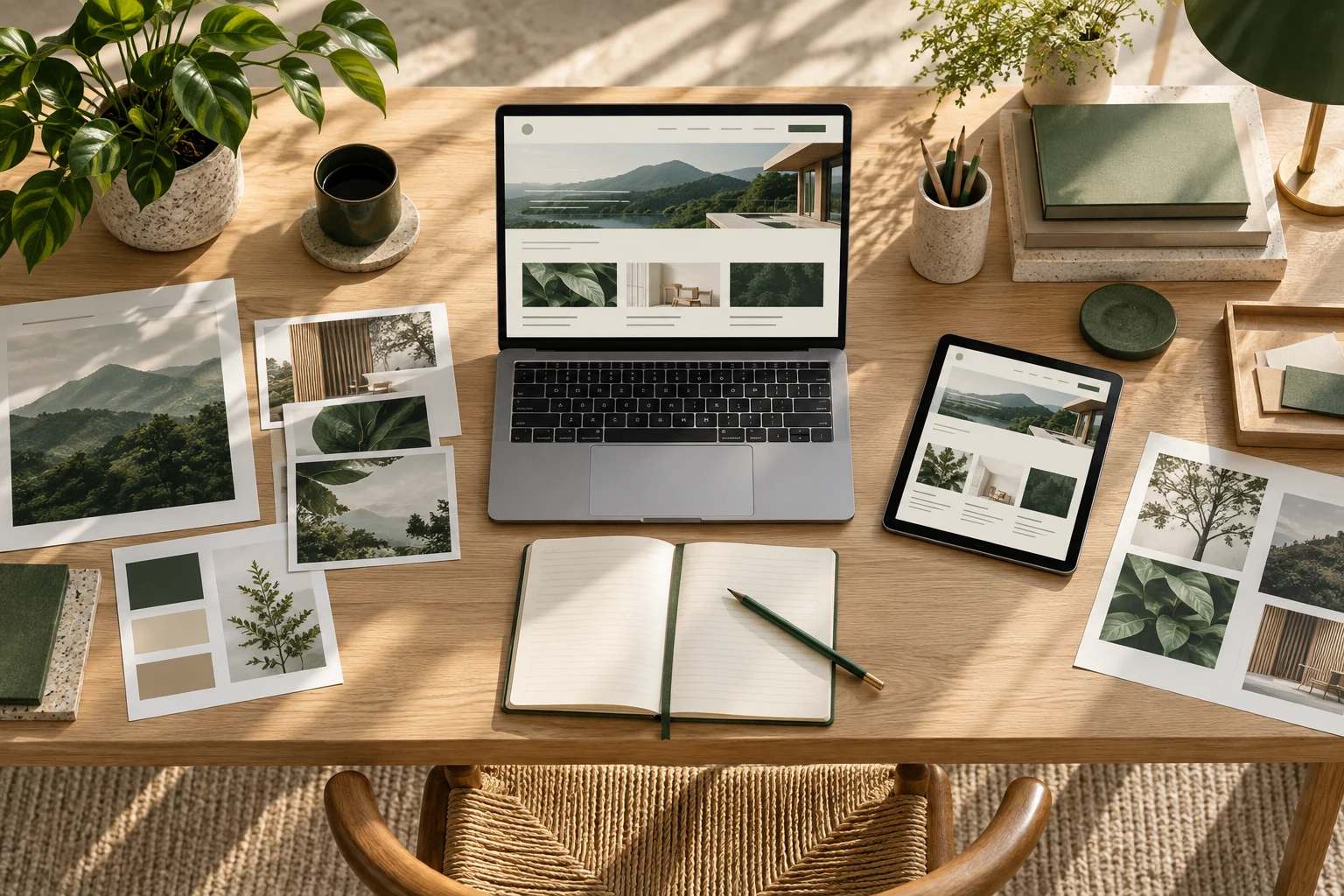
When updating website images, the mobile display directly impacts user experience. For beginners, preparing the following items in advance can help avoid common issues like blurry images, slow loading, or incomplete display.
1. Confirm Image Dimensions and Aspect Ratios
Mobile screen widths typically range from 375 to 414px (physical pixels), but you need to account for device pixel ratio (DPR). We recommend preparing these sizes:
- Full-screen images: At least 750px wide (375px × 2), with height adjusted proportionally.
- In-content illustrations: About 90% of the screen width, roughly 340–370px, using 2x images at 680–740px.
- Icons or small graphics: Prepare at 2x the display size; for example, if displayed at 50×50px, prepare 100×100px.
Avoid directly scaling down large original images, as this wastes bandwidth; also, avoid stretching small images, which causes blurriness.

2. Choose the Right Image Format
For mobile, prioritize loading speed and compatibility:
- JPEG: Ideal for colorful photos with high compression rates.
- PNG: Suitable for icons or simple graphics requiring transparent backgrounds.
- WebP: 25%–35% smaller than JPEG and supports transparency, but some older devices may not support it; provide a JPEG fallback.
For beginners, prepare both JPEG and WebP versions, and use code to detect browser support for loading. If technical resources are limited, start with JPEG and optimize later.
3. Compress Images to Control File Size
Mobile network conditions vary, and large image files slow loading. Aim for these sizes:
- Homepage hero images: Keep under 200KB, ideally below 100KB.
- Content images: Keep under 100KB, around 50KB is optimal.
- Icons: Keep under 10KB.
Use tools like TinyPNG or Squoosh for online compression while maintaining acceptable visual quality.
4. Write Alt Text for Images
Every mobile image needs an alt attribute for search engine understanding and assistive technologies (e.g., screen readers). Alt text should briefly describe the image content, such as "Company reception area photo" rather than "Image 1." Avoid keyword stuffing; keep descriptions natural.
5. Prepare Multiple Resolution Versions
Mobile devices have varying screen densities. Prepare at least two resolution versions for each image:
- 1x (standard resolution): For regular screens.
- 2x (high resolution): For Retina and other high-density screens.
If traffic is high, consider a 3x version. Use CSS or the srcset attribute to specify different versions, letting the browser load as needed.
6. Test Images on Mobile Devices
Before updating, test on real phones or browser simulators:
- Check if images display fully without stretching or cropping.
- Assess loading speed using Chrome DevTools' Network panel.
- Verify that clicking images leads to the expected link (if applicable).

If color differences are noticeable between iOS and Android, adjust the color profile to sRGB.
7. Backup Original Images and Update Records
Beginners should keep original high-resolution images for future edits. Also, record each update's image name, dimensions, compression ratio, and upload location for troubleshooting.
By preparing these items in advance, mobile image updates will go more smoothly and enhance user browsing experience. If unsure about technical details, consult your website builder or refer to official documentation.