


Start by Understanding What Customers Actually See
Many people treat "image links" as a technical issue, but customers never see the link code. What they see on the page is three things: the image itself, the text next to it, and the alternative text that appears when the image fails to load. Reducing confusion means making these three elements point to the same thing, so customers don't have to guess what will happen when they click.
A common negative example: the image is a product package, the file name is IMG_2043.jpg, the alt text says "banner", and the nearby text says "Learn more". Before clicking, customers have no idea what they'll see—they can only guess. This is a typical sign of high confusion.
File Names: Make Them Searchable for Your Team First
Although file names aren't directly displayed on the page, they affect two things: they serve as one of the signals search engines use when crawling images, and they determine whether your operations team can find the image later in the asset library. A good approach is to combine "content topic + purpose or location", connected by hyphens, for example valve-product-cover.jpg or factory-workshop-01.jpg. Avoid camera default numbers, Chinese characters with spaces, or a string of underscores.
The test is simple: if you send the file name to a colleague, can they roughly tell what the image is? If not, the naming isn't doing its job. For a batch of images, keep a consistent style—don't mix English, pinyin, and numbers, or future organization will be a headache.
Alt Text: Give a Description for Those Who Can't See the Image
Alt text is the alternative text for an image. It appears when the image fails to load, and screen readers also read it aloud. Its purpose is to explain what the image conveys, not to stuff keywords. Write one sentence that clearly describes the image content, and if necessary, include the topic of the page it links to—for example, "Diagram of workshop quality inspection process" rather than "workshop quality inspection process manufacturer price" as a keyword list.
If the image itself is a link entry point, the alt text can describe what customers will see after clicking, such as "View quality inspection process description". One boundary note: how to write alt text is a matter of content organization experience. The specific mechanisms of how search engines use alt text and whether it affects rankings are questions that require verification, and this article does not draw conclusions on that. From an operations perspective, ensuring customers and assistive tools can understand it is a safe direction.
Surrounding Text: Don't Let Images and Text Tell Different Stories
Customers often understand an image not from the image itself, but from the text next to it. If the image is a product photo and the nearby text says "Click to view detailed specifications", customers know they'll land on a specs page. If the text says "Welcome to inquire", they'll expect a customer service chat window. These are completely different expectations.
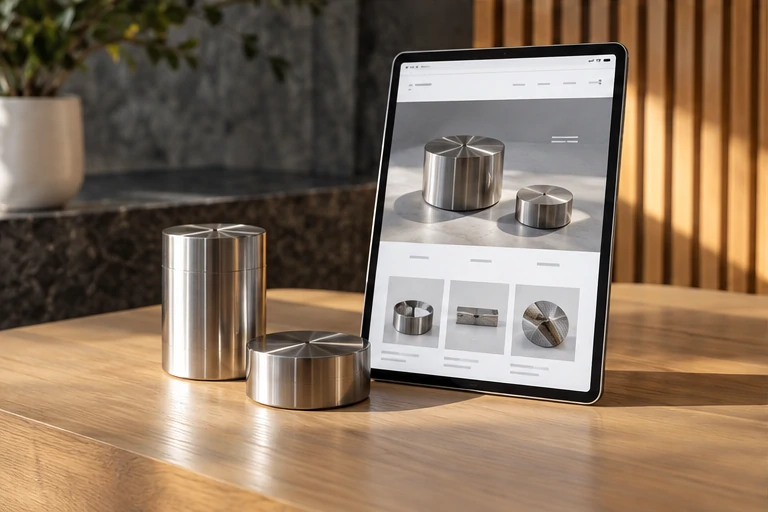
When writing surrounding text, first determine which page the image links to, then use one sentence to clarify what that page offers. When the image, alt text, and surrounding text all point to the same content, confusion naturally decreases. Conversely, if the three are inconsistent, customers will feel uncomfortable even if they click the right place.
Clickable Areas and Placement: Let Customers Know They Can Click
Some image links go unnoticed because they look no different from ordinary illustrations. Adjustments you can make include: give clickable images a clear visual state, such as a slight change on hover; place clickable images where customers expect to click, such as in a product list; avoid inserting a clickable image in the middle of a paragraph, which makes it unclear whether to click the image or the text.
Also, don't attach two different destinations to the same image. Some pages have an image where clicking the left side goes to a product page and the right side goes to a contact page—customers find this hard to judge and easily click the wrong one. If you really need two entry points, use two separate images or two text buttons.

Pre-Publish Checklist in This Order
- List all image links on the page and confirm one by one which page each leads to.
- Check whether file names are searchable and whether naming styles are consistent within the same batch.
- Check whether alt text clearly describes the image content and avoids keyword stuffing.
- Check whether the text next to the image matches the content of the linked page.
- Open the page on a mobile phone to see if clickable images are obvious and easy to tap.
- Temporarily hide the images or load the page offline to see if the alternative text still helps customers understand what's there.
This checklist requires no professional tools—operations staff can complete it themselves. After doing so, image links shift from "customers clicking by guesswork" to "customers knowing what they'll see when they click". That is the practical effect of reducing confusion.