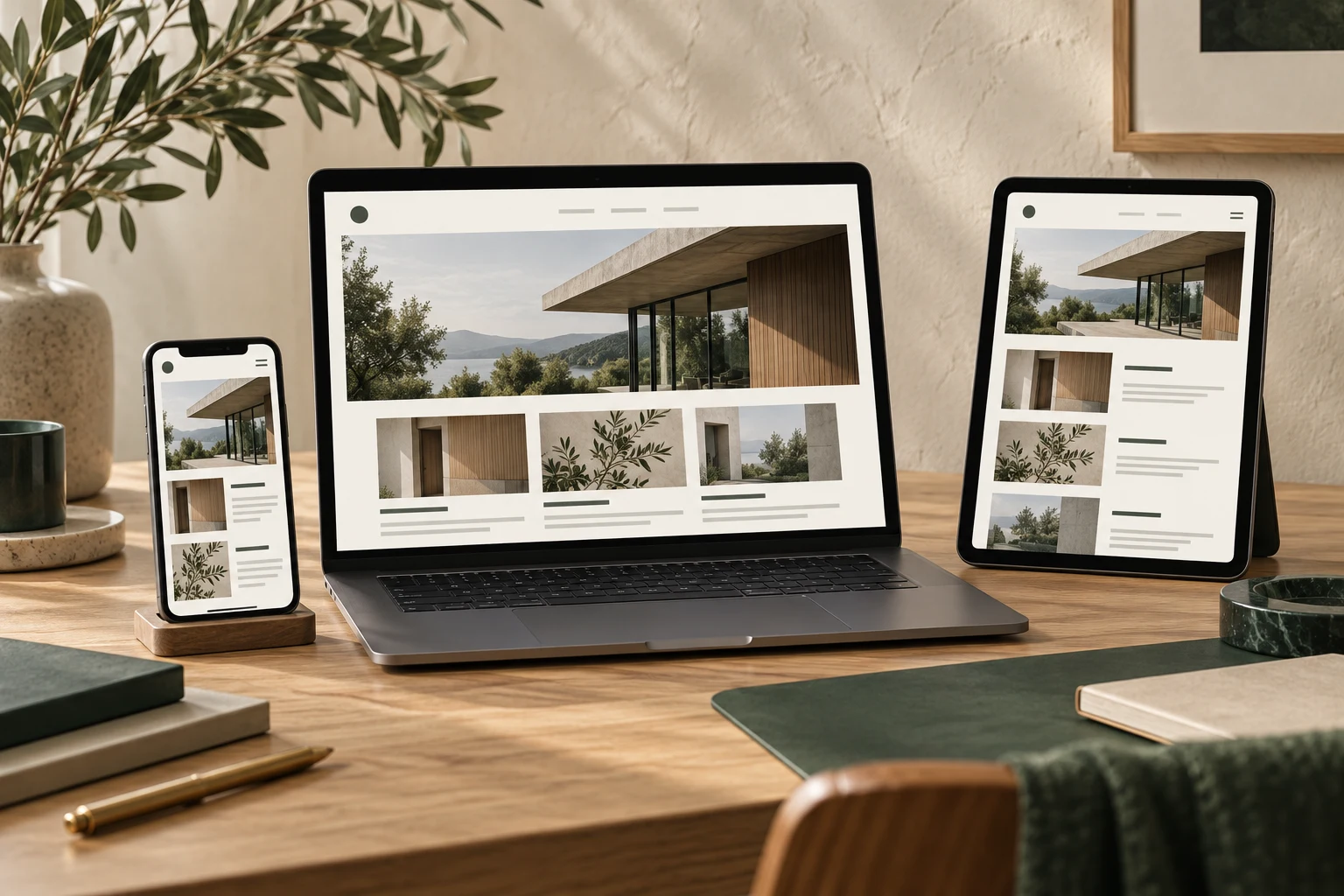


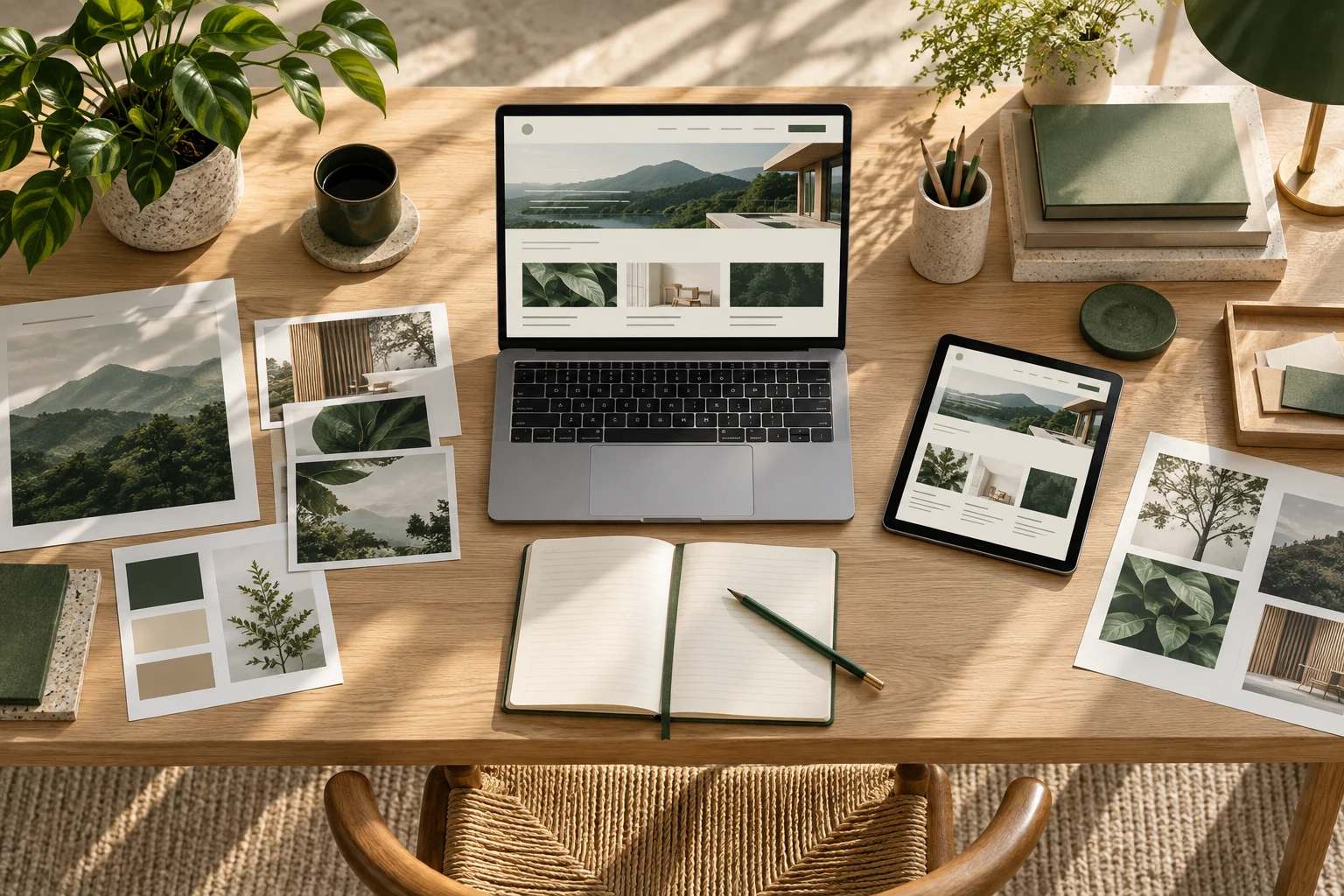
A banner that looks good in desktop preview doesn't necessarily work properly on mobile. Mobile image adaptation involves a specific set of checkpoints: whether the main subject is cropped out, whether text is still readable on a small screen, whether the image file size slows down loading, and whether the front-end display matches after a back-end replacement. These have little to do with aesthetics—they're operational steps that must be reviewed one by one before publishing.
Why "looks good" isn't a sufficient standard
Desktop screens and mobile screens have very different display ratios. The same banner image that displays fully on a wide screen often gets cropped on both sides on a narrow screen, or gets compressed and distorted. The version a designer approves on desktop and the version users actually see on their phones may not be the same image at all.
What's more troublesome is that banners often contain text and buttons. A font size that looks appropriate on desktop may be too small to read on mobile, or line breaks may split a sentence awkwardly. If you judge only by "does the page preview look good," these problems won't be caught before publishing.
So the standard for mobile image adaptation should shift from "does it look good" to "is the key information still complete, clear, and loadable on a narrow screen."

Check these display issues before publishing
First, check the subject position. Preview the banner at mobile width and confirm that core elements like people, products, and logos aren't cropped out of the frame. If the subject is positioned toward the sides, consider re-cropping or moving the subject toward the center.
Second, check the text on the image. If the banner has promotional copy, event dates, or button text, verify each item displays completely at mobile width—not truncated or wrapped until it's unreadable. Text baked into an image is harder to fix than HTML text, so it's better to include less rather than cram too much in.
Third, check button and link positions. Some banners have clickable areas built into the image. After mobile cropping, a button might be cut in half and become unclickable. Before publishing, actually tap through on a phone to confirm the clickable area is still there.
Fourth, check how the image blends with the background. If the image edges don't match the page background color, obvious color blocks or white edges may appear on mobile—issues that aren't always visible on desktop.
Image file size and loading need attention too
Mobile network conditions are far more varied than office broadband. Banner images are often the largest image on a page. If the file size isn't controlled, users may see a blank space first while the image slowly loads.
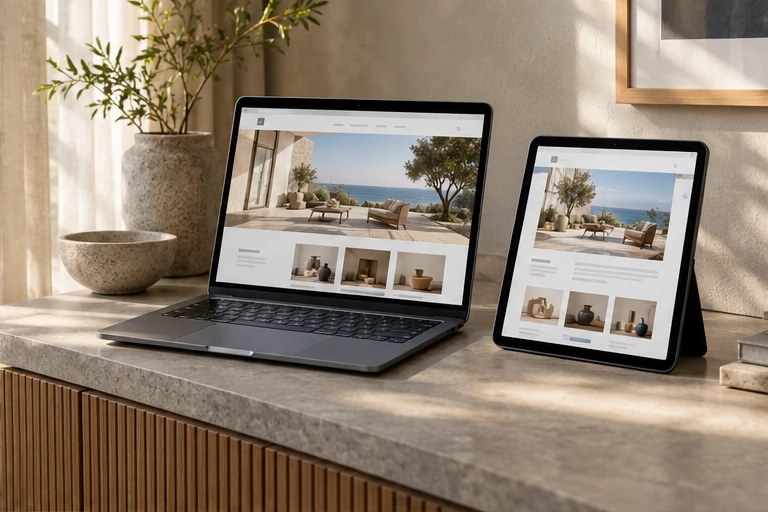
The approach: export images at their actual display dimensions rather than using one oversized image and scaling it down. Export at close to the display width so phones don't download an image far larger than the screen. For format, photo content works well with formats that compress to smaller sizes, while images with transparent backgrounds or simple graphics can use formats that support transparency. The specific choice depends on your team's existing tools and back-end support.
After exporting, check the file size yourself. If it's clearly too large, compress it again. When compressing, be careful not to blur the text—especially small text on the image, where over-compression directly hurts readability.
Steps easily missed when replacing banners in the back end
Many problems don't come from the design stage but from the back-end replacement stage. An operator gets a new image, uploads it, saves it, and doesn't go back to check on mobile. As a result, the front end still shows the old image, or the new image is stretched.
When replacing, follow this order: first confirm the new image dimensions match what the back end requires; after uploading, don't just look at the back-end preview—open the front-end page on a phone and actually look at it; once the image displays correctly, check whether the links on the image are still clickable and whether the destination URLs are correct; finally, clear the browser cache or check on another device to avoid seeing a cached old image.
If the back end supports setting different banner images for different devices, confirm separately which image is displayed on desktop and which on mobile. Don't let the mobile version still use the desktop-sized image.
Turn checks into a fixed routine
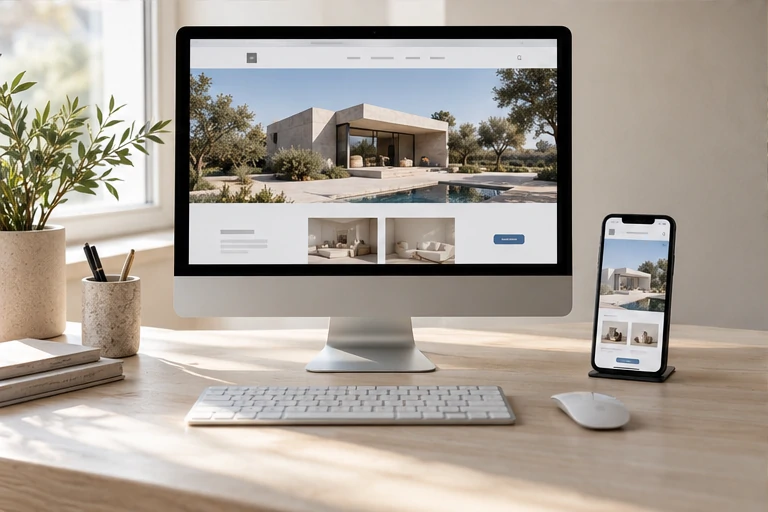
Mobile image adaptation is easy to miss when you rely on remembering to check each time. A more reliable approach is to make it a fixed step in the publishing process: after uploading a banner, open the front-end page on a phone and review it from the angles of subject, text, buttons, file size, and links. Only when everything checks out is publishing complete.
If your team has multiple operators, add these checkpoints to the publishing checklist—whoever replaces the banner verifies it. That way, even with staff changes, no one goes live just because "it looks good."
Next time you replace a banner, don't rush to judge whether it looks good. First open the page on a phone, go through the items above, and then decide whether adjustments are needed.